ChannelsHD - Manage Campaigns in a Channel
Learn how to manage Campaigns in an existing Channel.
Intro to Managing Campaigns in a Channel
In this Article we will review how to Manage Campaigns in a Channel in ChannelsHD.
Once a Channel has been created and Campaigns have been added to the Channel, you can then manage the list of Campaigns to create a rotation of content that is suitable for playback.

Managing a Channel
On the Channel Manager page, click on the Manage button associated with the Channel.


Changing the Campaign Order in a Channel
To change the order of playback for the Campaigns in the list, click and drag a Campaign to the desired spot in the list.


Runtime and Slide Number
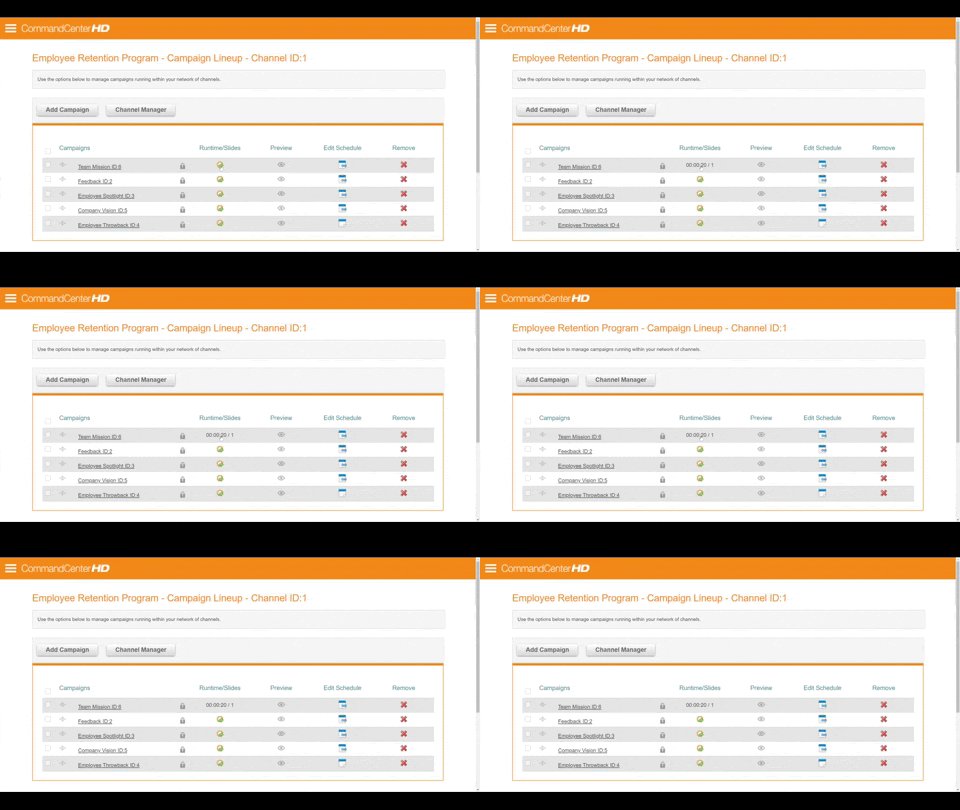
To view a Campaign's Number of Slides and the Full duration for the Slides in the Campaign, click on the button in the Runtime/Slides column associated with the Campaign:

If you would like to quickly access the information for all the Campaigns in the Channel, click the Runtime/Slide Column Header:

Preview a Campaign
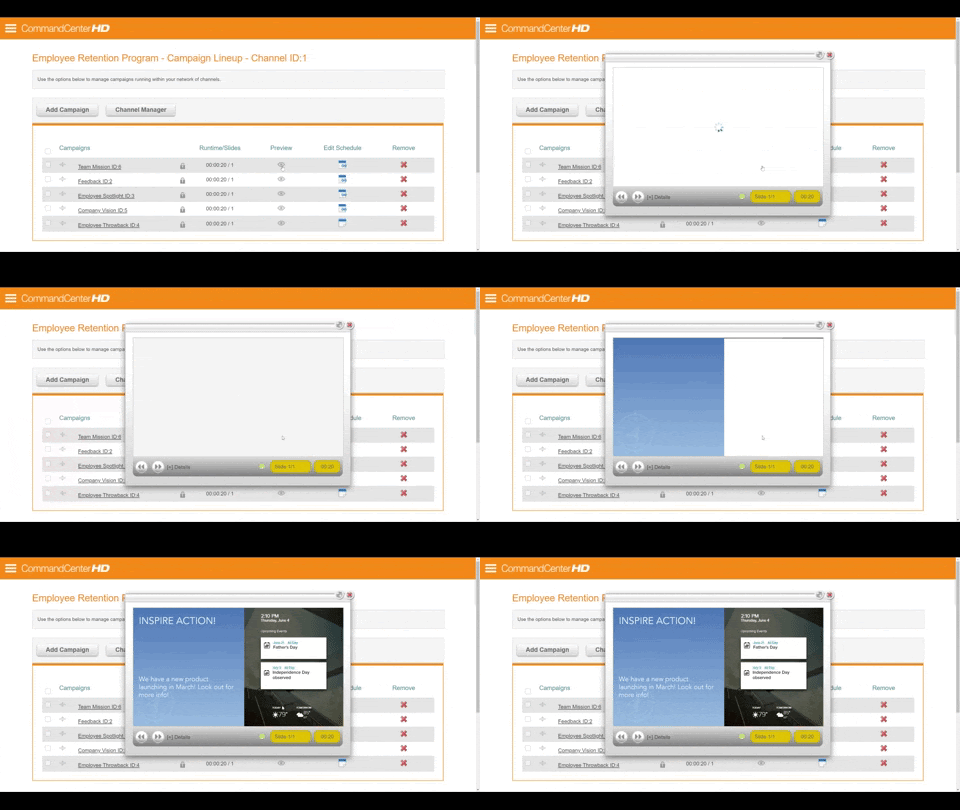
To Preview all the Slides in a Campaign, click on the Preview button associated with the Campaign:


Edit the Campaign Schedule
To edit the Scheduling Options for the Campaign, click the Edit Schedule button associated with the Campaign:


Learn more about the Scheduling Options in the Schedule a Campaign in a Channel article.

Remove a Campaign from the Channel
To remove an Campaign from a Channel, click the Red X associated with the Campaign in the Remove column. Then click OK in the browser prompt, to confirm you do want to remove it from the Channel:



Permissions
If you are an Administrator, you can edit the Permissions of the Campaign within the Channel by clicking on the Padlock to the left of Runtime/Slides:

Learn more about Object Permissions in the Asset and Object Permissions article.